
Free Works in GreetPlayer Free and Pro.
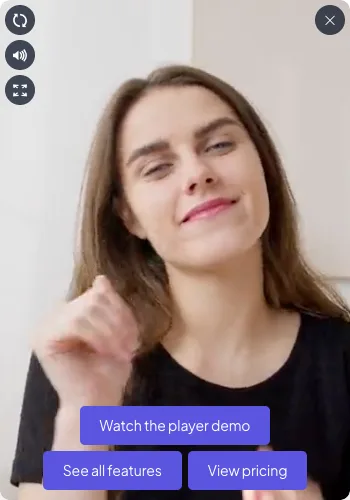
A video bubble is a round video in the corner of the page. It plays quietly, and when a visitor opens it, it becomes a full player with your greeting and buttons. Here is the quickest way to put one on your whole site.
Step by step
Create a video bubble and show it on every page.
-
Create the bubble

Go to GreetPlayer → Media and click Add New. In the dialog choose Video Bubble, enter a Name, pick a Source (for example Self-hosted (media library)) and click Create.
-
Add the video and poster

In General, choose the video under Upload Default Video (MP4) and an image under Default Video Thumbnail.
-
Write the greeting

Open Floating Bubble → Bubble and type your greeting in Hi Text, for example “Hi there!”.
-
Add buttons
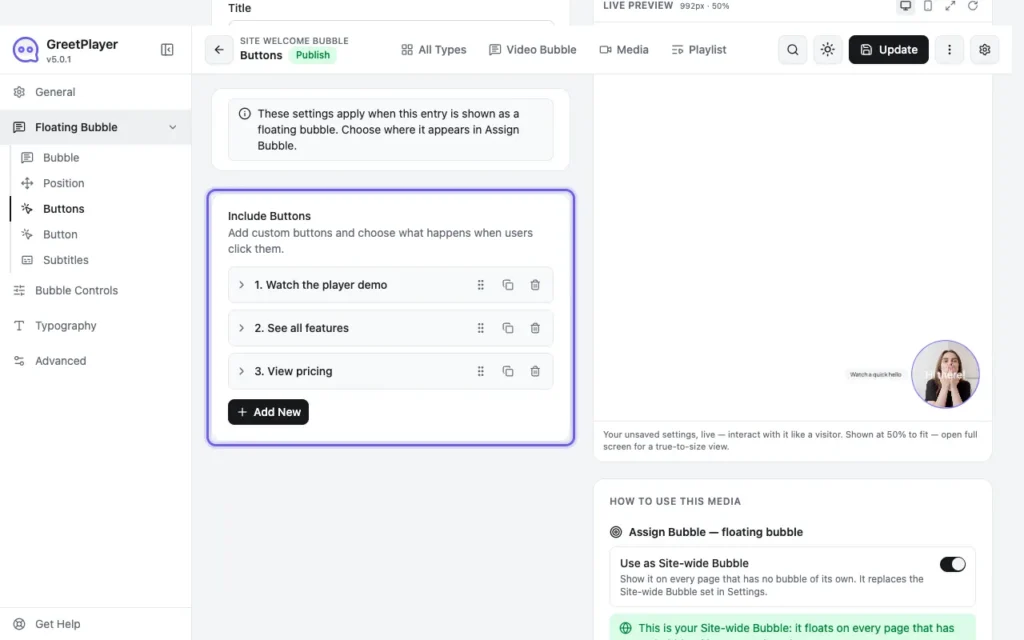
Open Floating Bubble → Buttons, turn on Include Buttons and add a button. Set its Button Action to Another Video or External Link.
-
Show it on every page
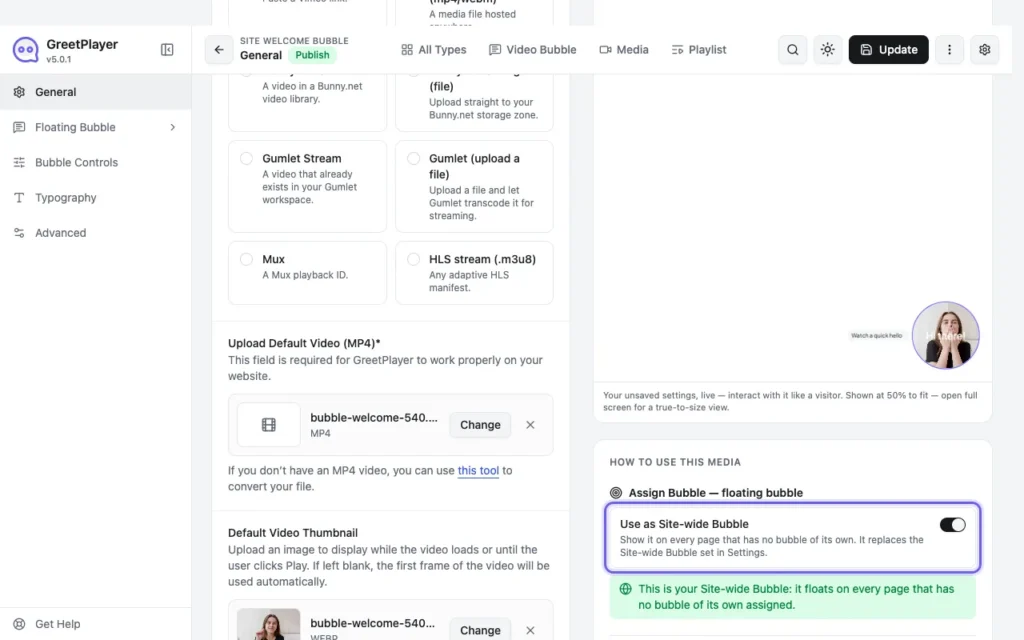
Click Publish, then turn on Use as Site-wide Bubble in the editor.
Tip Keep the bubble clip short (10–15 seconds) and small. By default the bubble plays its clip, muted, as soon as the page loads. To load it later, change Floating Bubble → Bubble → Video Preview (see autoplay and data use).
See it live Open the site-wide bubble demo →