Halloween Sale: up to 50% off yearly plans and up to 70% off lifetime licences.

Ends Nov 5 at 11:59 pm +06. See pricing

Add an audio player

Written for GreetPlayer 5.0.1

Free Works in GreetPlayer Free and Pro.

An audio player is a Media entry with Audio-Only (Podcast) Player turned on. It suits podcasts, music and voice notes.

Step by step

Create an audio player.

  1. Create a Media entry

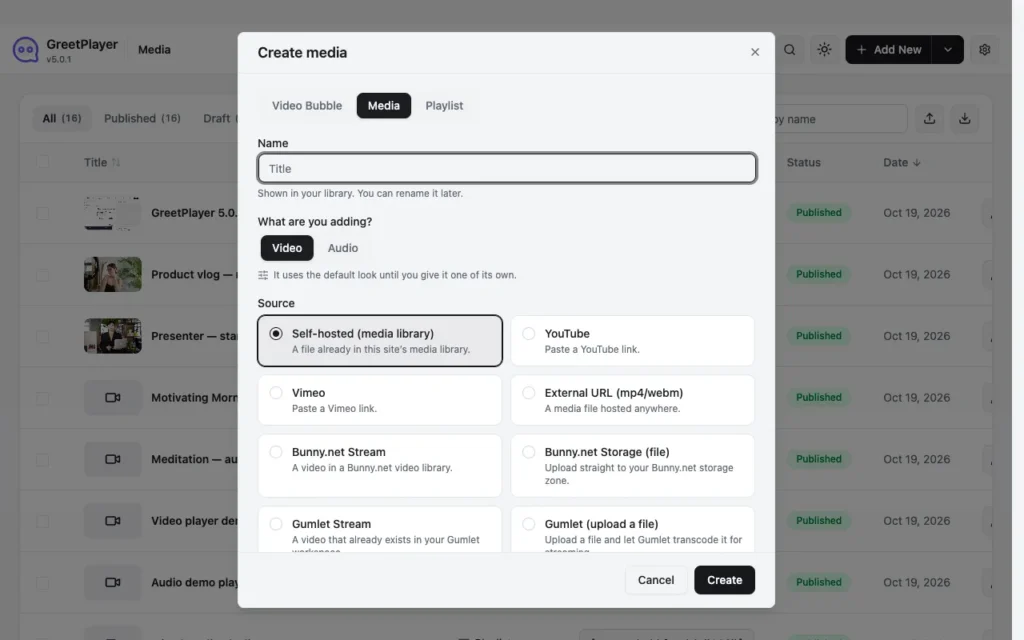
    The Add New dialog with the Media tab selected, showing Video and Audio types

    Go to GreetPlayer → Media and click Add New. Choose Media, enter a Name and click Create.

  2. Switch to audio

    The Audio Mode tab with Audio-Only (Podcast) Player switched on

    Open Video Player → Audio Mode, turn on Audio-Only (Podcast) Player, choose the Audio Layout (Compact, Card or Minimal) and pick the Audio File.

  3. Add a title and description

    The Title and Description tab for an audio player

    Under Player Content → Title & Description, turn on Show the Title in the Player and add a Description Below the Player, for example the episode notes.

  4. Publish and embed

    The How To Use This Media panel showing the player shortcode

    Click Publish, copy the shortcode and paste it into a Shortcode block.
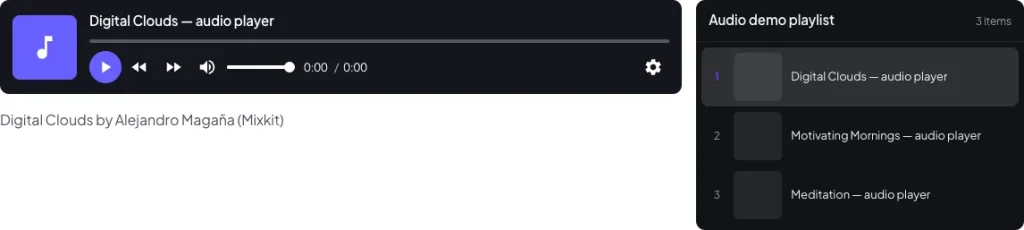
An audio playlist with three tracks in the sidebar
Audio players grouped in a playlist.

Tip Several episodes? Put the audio entries in a playlist. The next one plays when the current one ends.

See it live Listen to the audio player demo →

Related

Was this article helpful?

Greet every visitor with a video that moves them to act

Start free from WordPress.org. Upgrade to Pro when you need lead capture forms, premium video sources, device targeting and advanced analytics.

Watch a quick hello
Watch the player demo
See all featuresSee all features
View pricingView pricing