
Free + Pro Works in GreetPlayer Free. Options marked Pro need GreetPlayer Pro.
These settings live in the bubble’s Floating Bubble and Bubble Controls sections.
Step by step
Place the bubble and choose how it behaves.
-
Position

In Floating Bubble → Position, choose Bubble Position (Right Bottom or Left Bottom; Right Middle and Left Middle need Pro) and the margins in px, em or %. Separate tablet and mobile positions and Draggable Position Change need Pro.
-
Menus and sticky headers

Also in Floating Bubble → Position, turn on Hide While a Menu or Popup Is Open so the closed bubble steps aside while a menu or popup is open. It recognises the WordPress navigation menu overlay, Bootstrap and Kadence modals and off-canvas panels, and open dialogs. Stacking Order (default 9999) sets which layer the bubble sits on: lower it to put the bubble under a sticky header.
-
Timing

In Floating Bubble → Bubble, Time-Based Loading fades the bubble in after a delay in seconds. Show After Scrolling waits until the visitor has scrolled a Scroll Distance (300 px by default, or a percentage of the page), so the bubble never covers your opening lines; with both set, whichever comes first wins. Pause Video When Leaving Page pauses the video when the visitor switches tabs. Hide For Session (Pro) keeps the bubble hidden after a visitor closes it.
-
Video preview

Video Preview chooses what the closed bubble plays: Autoplay muted (the default), Play when visible (the clip loads and plays once the bubble appears) or Poster only (nothing loads until the visitor hovers, focuses or taps the bubble).
-
Attention effect
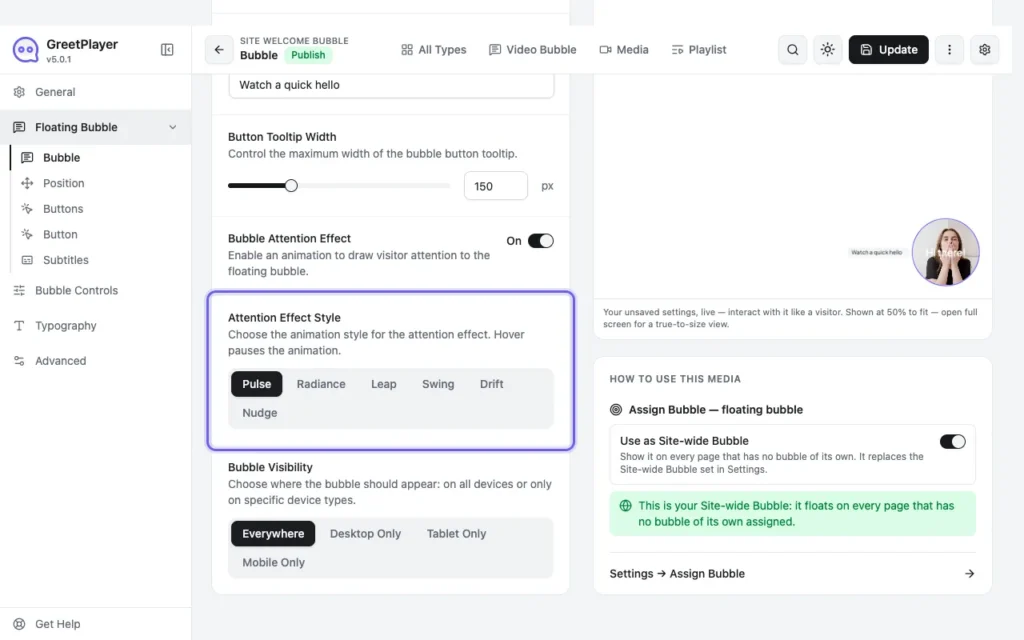
Turn on Bubble Attention Effect and pick an Attention Effect Style. Pulse is free; Radiance, Leap, Swing, Drift and Nudge need Pro.
-
Devices

Bubble Visibility (Pro) shows the bubble everywhere, or on desktop, tablet or mobile only. Under Floating Bubble → Position → Screen Sizes (Pro), Mobile up to (px) and Tablet up to (px) set where each device starts (576 and 991 by default).
-
Bubble controls
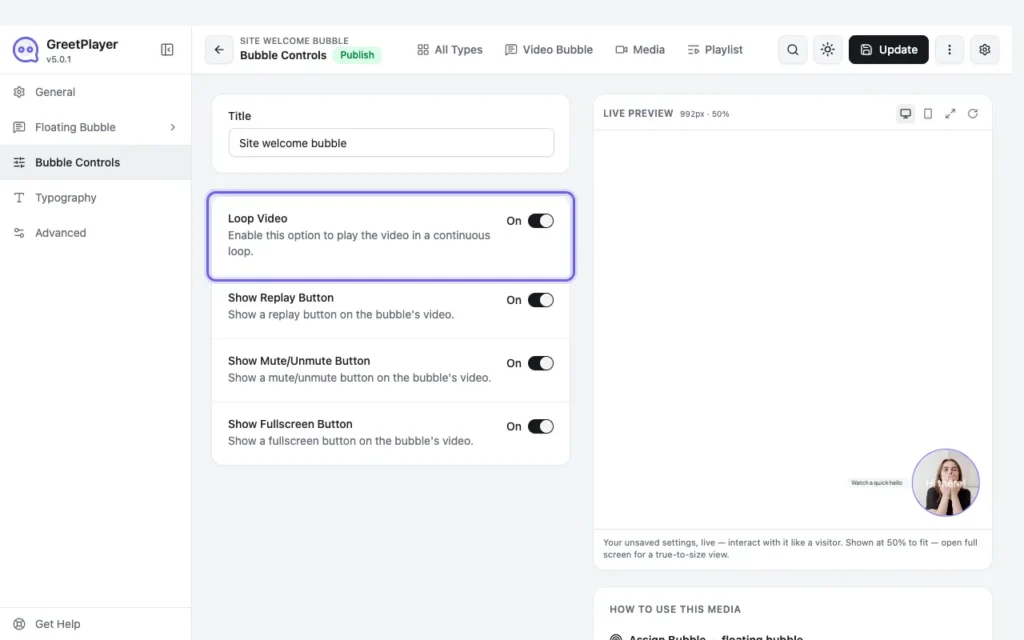
In Bubble Controls (Pro), choose Loop Video and whether the replay, mute/unmute and fullscreen buttons show.
Note Time-Based Loading and Show After Scrolling delay when the bubble appears. To also hold back its video until then, set Video Preview to Play when visible. This site’s bubbles use Play when visible with Show After Scrolling.
See it live See the Radiance effect on the landing page demo →