
Free + Pro Works in GreetPlayer Free. Options marked Pro need GreetPlayer Pro.
Buttons sit under the open bubble’s video. They are added in Floating Bubble → Buttons and styled in Floating Bubble → Button.
Step by step
Add and style bubble buttons.
-
Turn buttons on
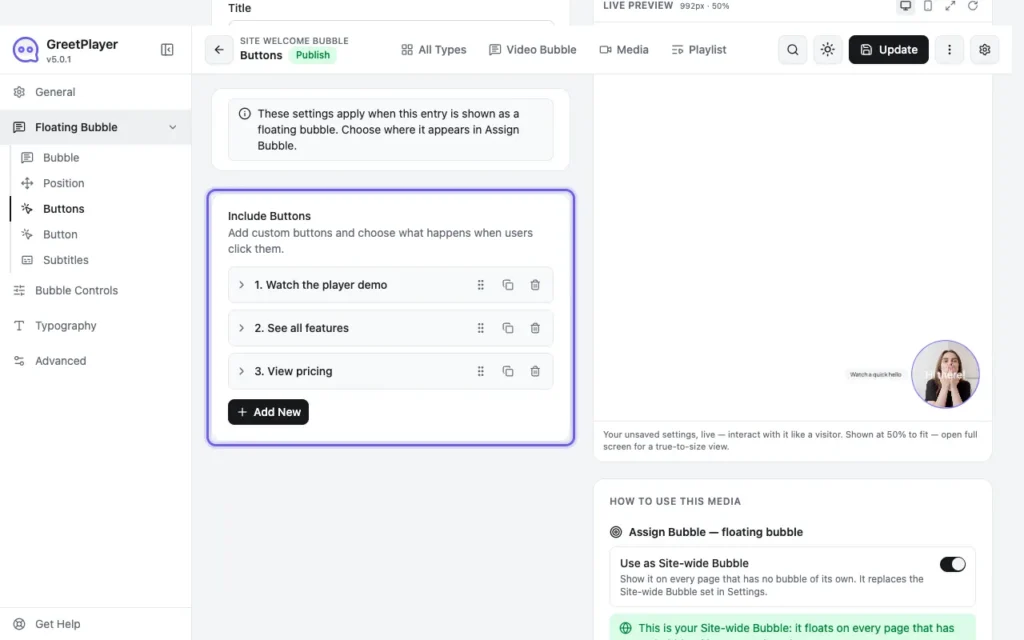
In Floating Bubble → Buttons, turn on Include Buttons and click Add New for each button.
-
Choose what each button does

Give it a Button Label (and an optional Button Icon), then set Button Action: Another Video (an uploaded MP4 or YouTube video), External Link (a page or URL), or Contact Form (Pro).
-
Style the buttons

In Floating Bubble → Button, set Button Display Type (Text Only or With Icon and Text; Icon Only needs Pro), Button Type (Square or Rounded), Button Radius, Buttons Colors and tooltips.
Note GreetPlayer Free shows up to three buttons in a bubble.
See it live Try a bubble with three buttons →