
Free + Pro Works in GreetPlayer Free. Options marked Pro need GreetPlayer Pro.
A rule’s Post Type list includes every public post type on your site: events from The Events Calendar, courses, listings, portfolios and so on.
Step by step
Assign a bubble to events.
-
Add a rule
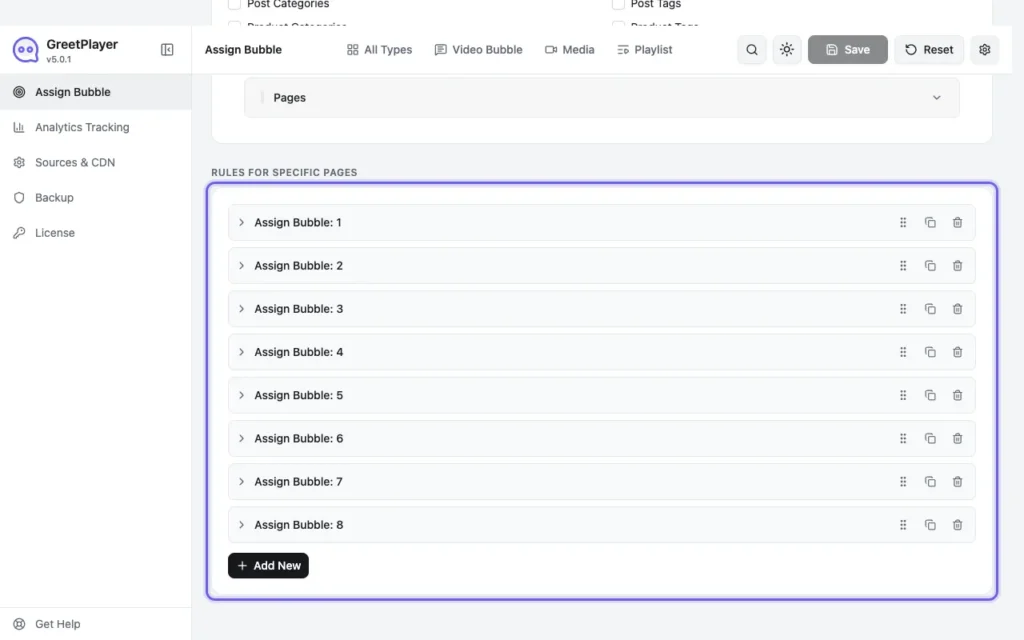
Go to GreetPlayer → Settings → Assign Bubble and add a rule under Rules for Specific Pages.
-
Choose the events

Set Select By to Specific Post(s), Post Type to Event, and choose the events under Select Event(s).
-
Choose the bubble and save
Pick the bubble under Select Media and click Save.

You can also embed a player on the event itself: paste the player’s shortcode into the event description.
Note Tested on this site with The Events Calendar 6.18.2. GreetPlayer Free includes one assignment rule. One rule can cover many pages, but they all get the same bubble. GreetPlayer Pro allows as many rules as you need.
See it live Open the event bubble demo →